Publish your game to Roblox
Your game is the code Studs built from your prompt. You get it two ways: Download the file to open in Roblox Studio, or Publish it straight to Roblox. Publishing needs a one-time key, then it is one click every time after.
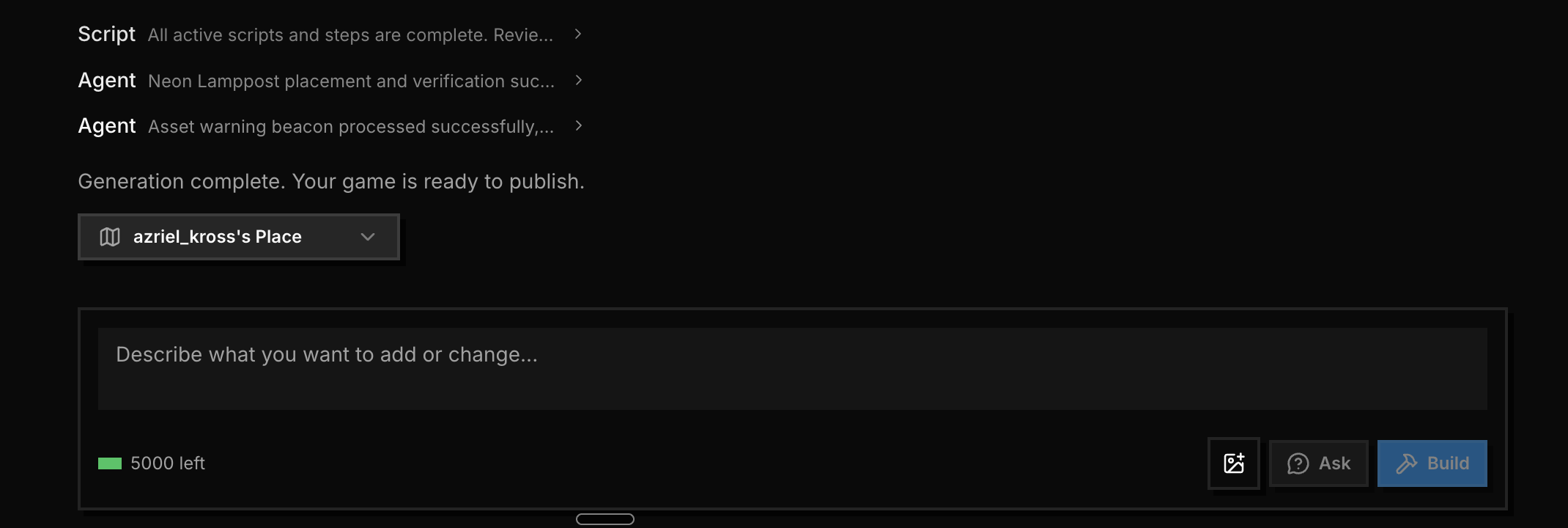
Open the publish menu
When your game is done, click the place button under "Generation complete." A menu opens with three parts: your Places, Publish, and Download.
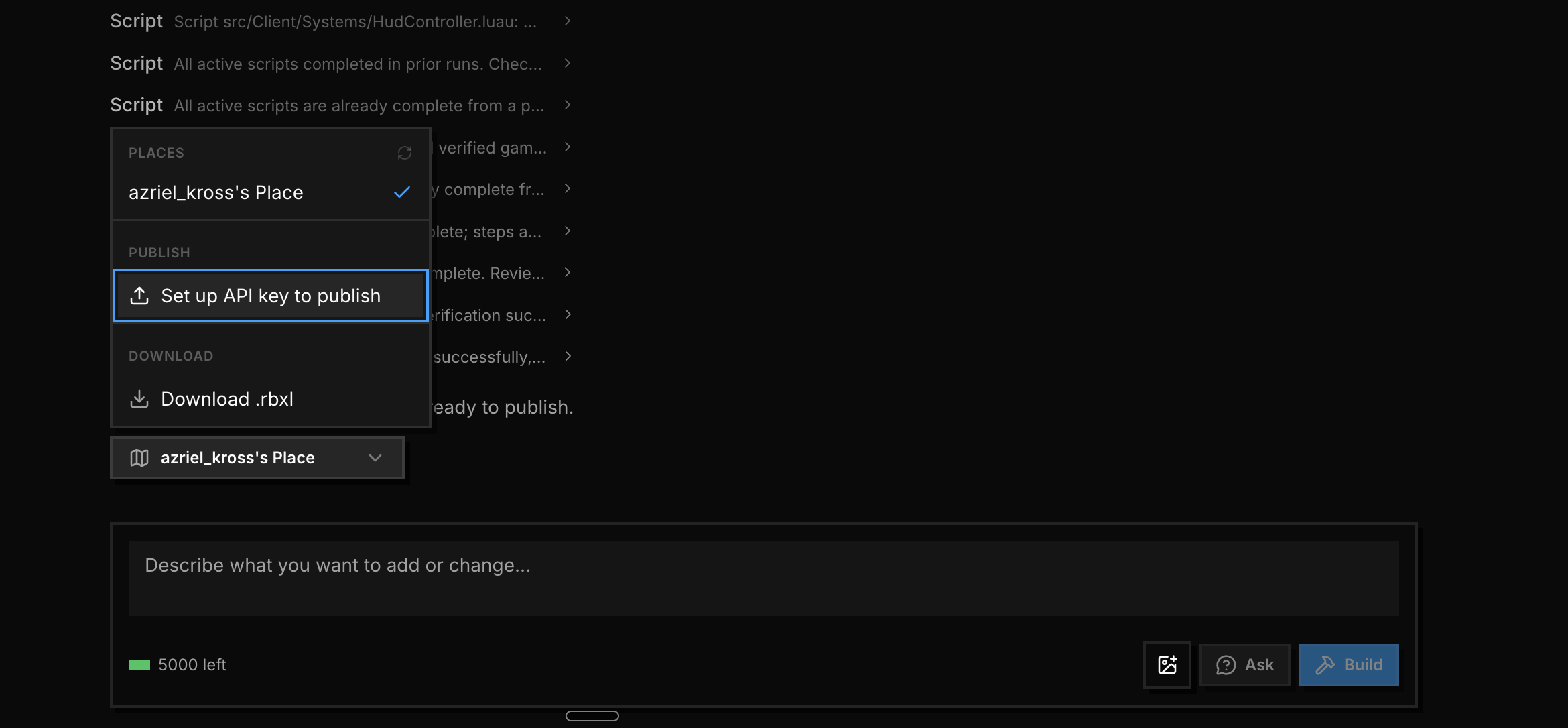
Set up your key (one time only)
The first time, you will see Set up API key to publish. Click it and follow the short wizard. See "Set up your Roblox API key" for the exact steps. The three that matter: pick
universe-places, addwrite, and setNo Expiration.Make your Roblox account ready. Roblox asks you to finish a quick eligibility step, turn on API access in Settings and Security, and set your place to Public.
Once your key is saved, you only do this once. After that, publishing is a single click.
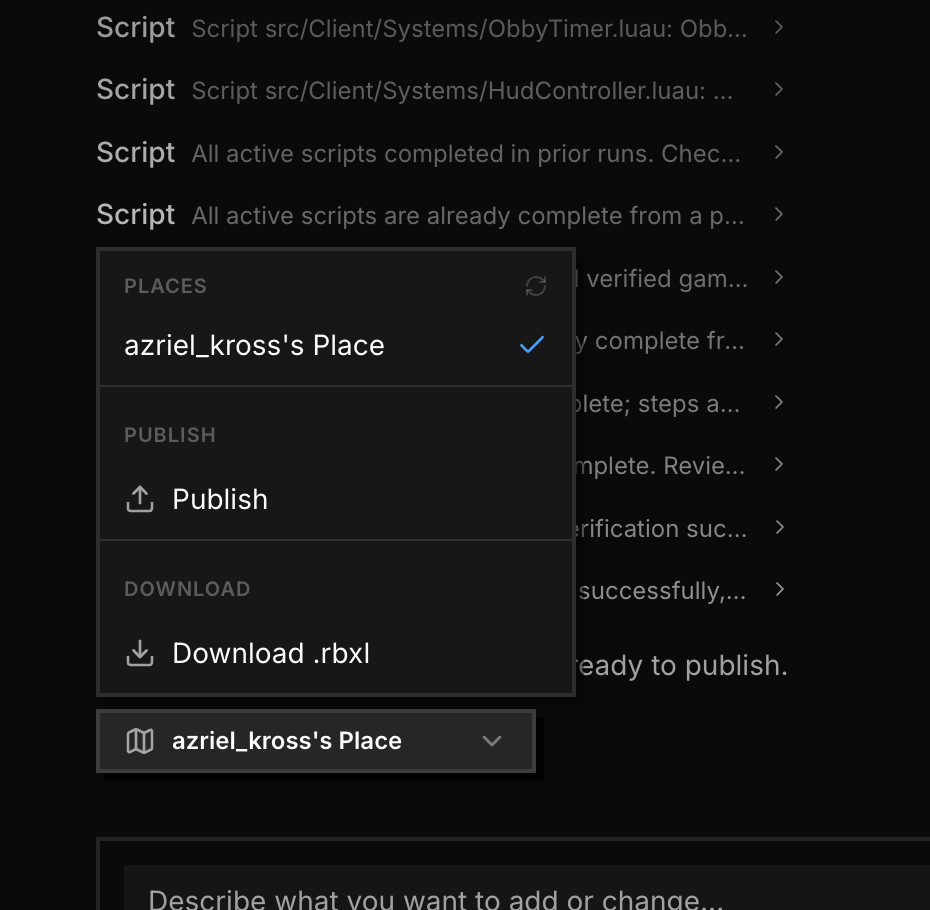
Just want the file instead?
In the same menu, choose Download .rbxl. That downloads your game so you can open and publish it from Roblox Studio. Handy if the key path gives you trouble.
Seeing "Permission denied"?
This usually means the Roblox side is not ready yet, not your key. Recheck the three items above. And make sure your key has universe-places:write.
Still won't go? You can download your game file and publish it from Roblox Studio instead. Or send us your Run ID and the exact error, and we will help.