Set up your Roblox API key so you can publish
To publish to Roblox, Studs needs a Roblox API key. It takes about 2 minutes. Tap your avatar and pick Publishing Key, and a wizard walks you through all 7 steps. Three things people get wrong: choose universe-places, add write, and set No Expiration.
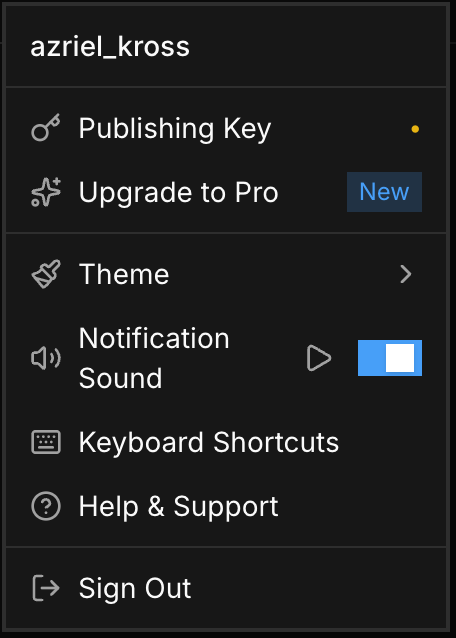
The 7 steps
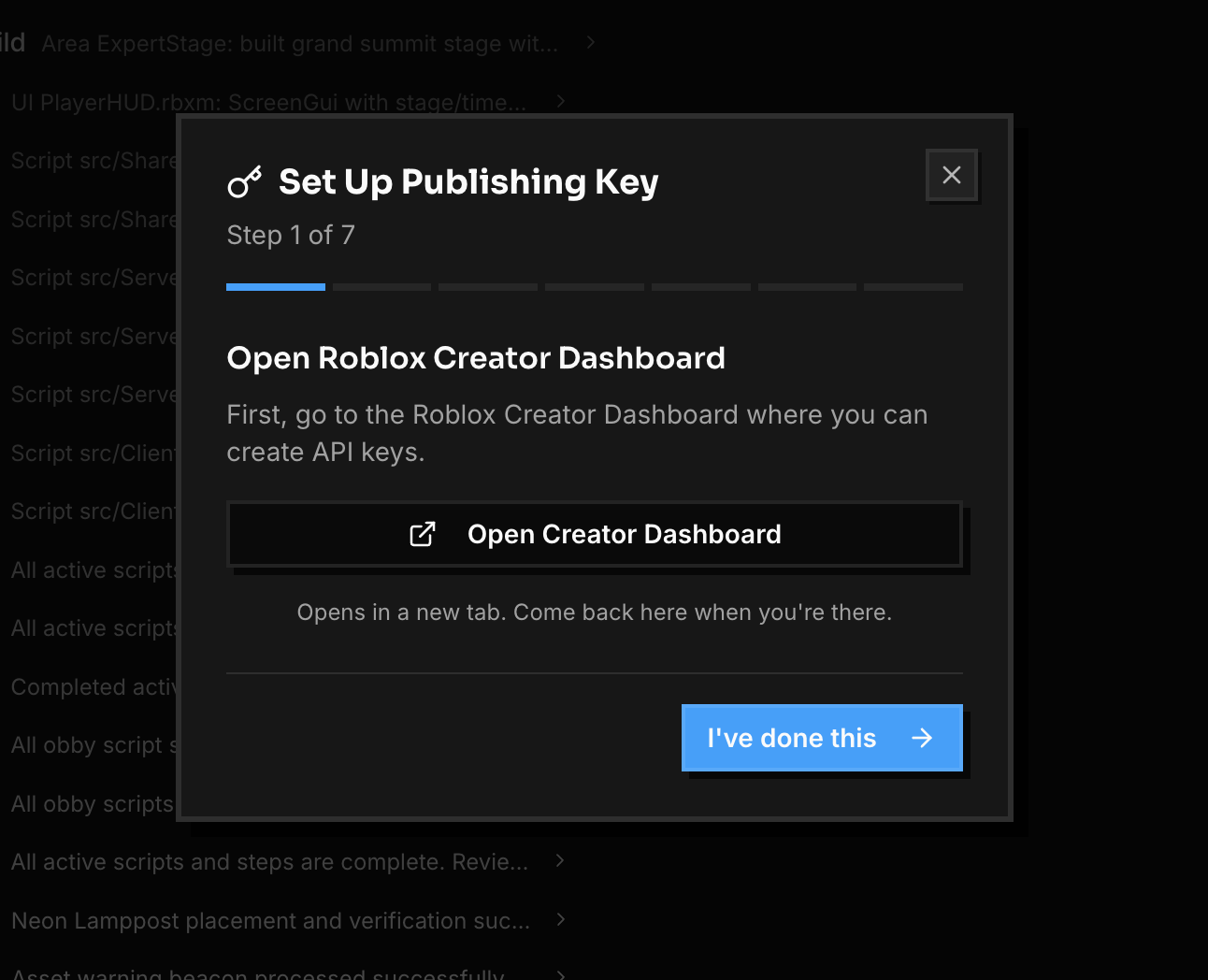
Open the Roblox Creator Dashboard. In the wizard, click Open Creator Dashboard. Roblox opens in a new tab. Come back to Studs when you are there.
Create a new API key. On the Roblox page, click Create API Key and name it
Studs.gg Publishing Key.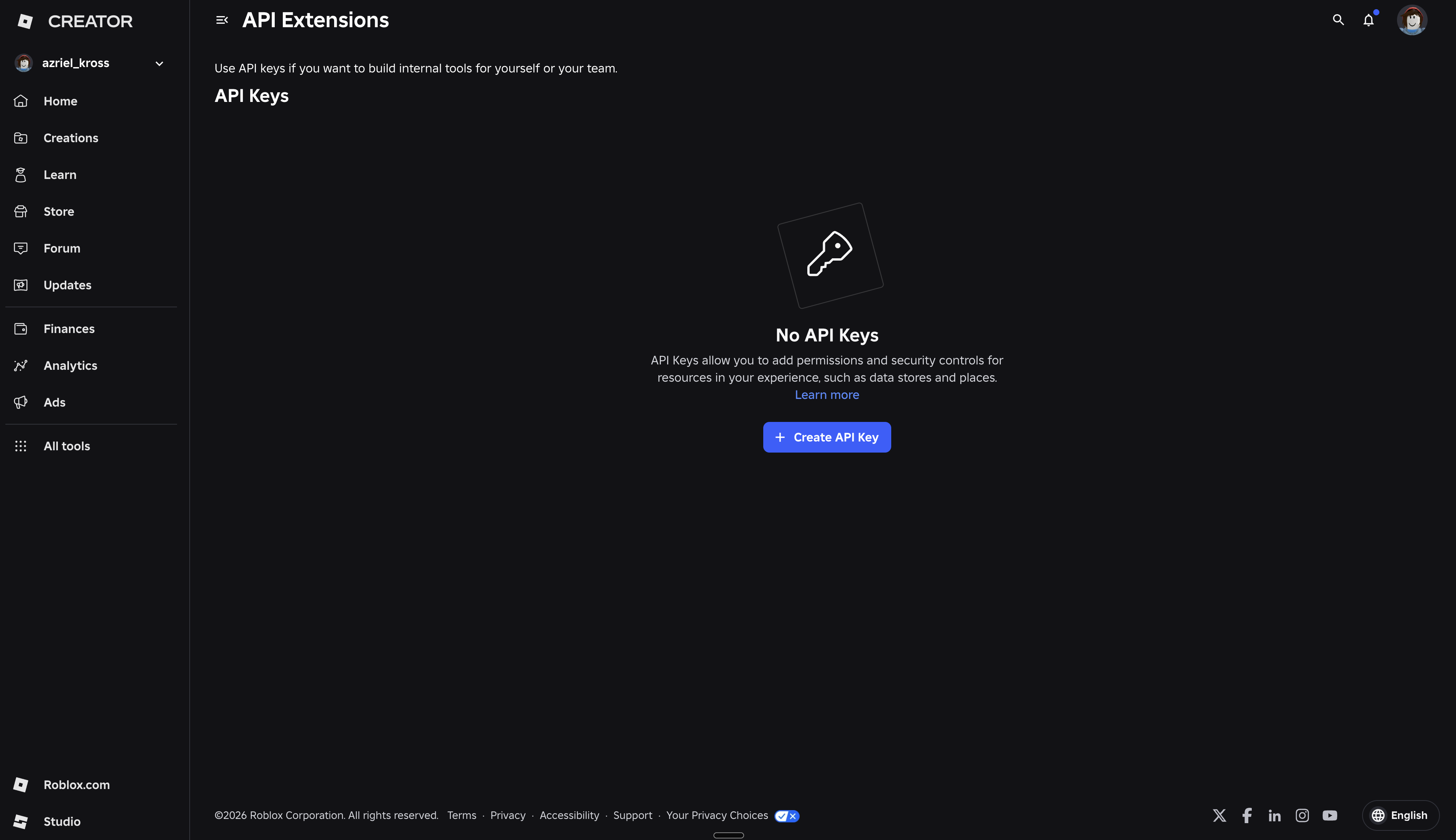
Find Access Permissions. Scroll to section 2, Access Permissions, and open the Select API System box.
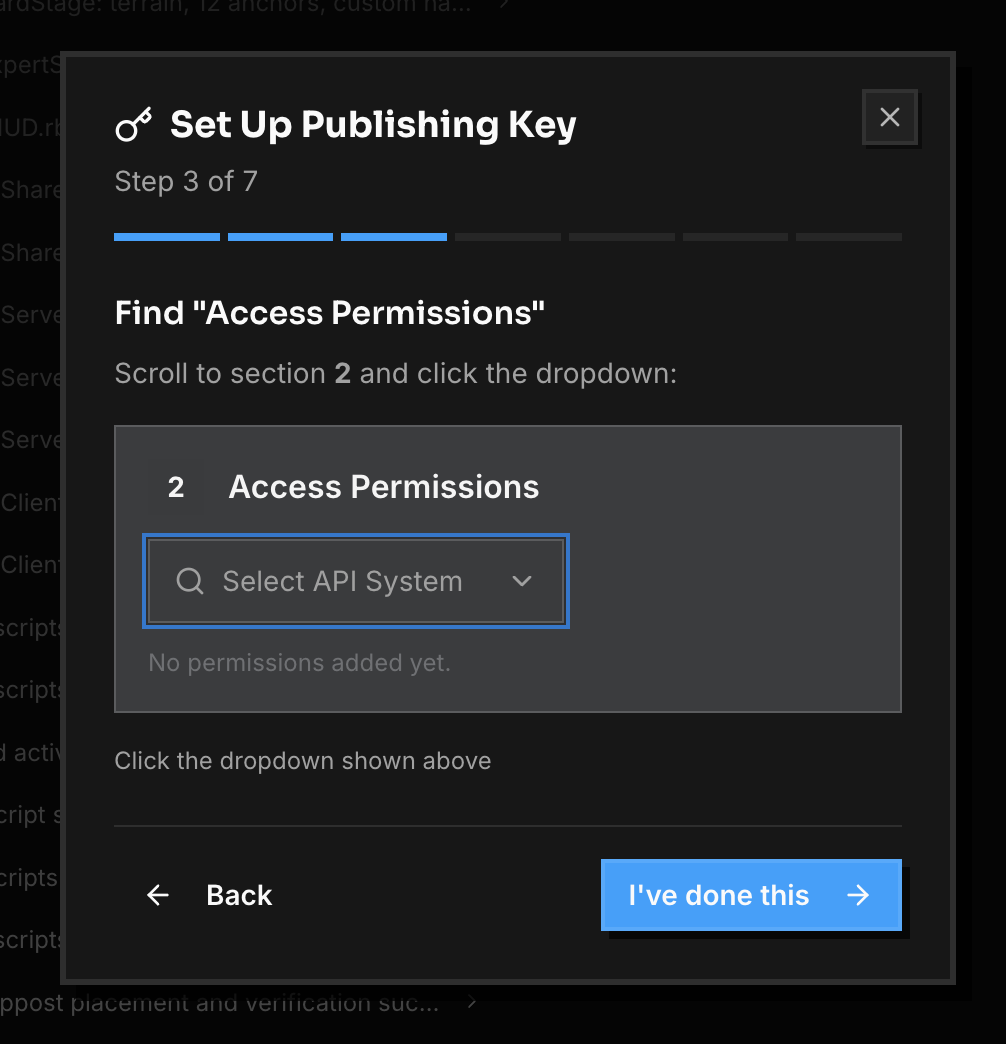
Pick universe-places. Type universe and choose
universe-places. Do not pick "universe" or anything else. This is the top mistake.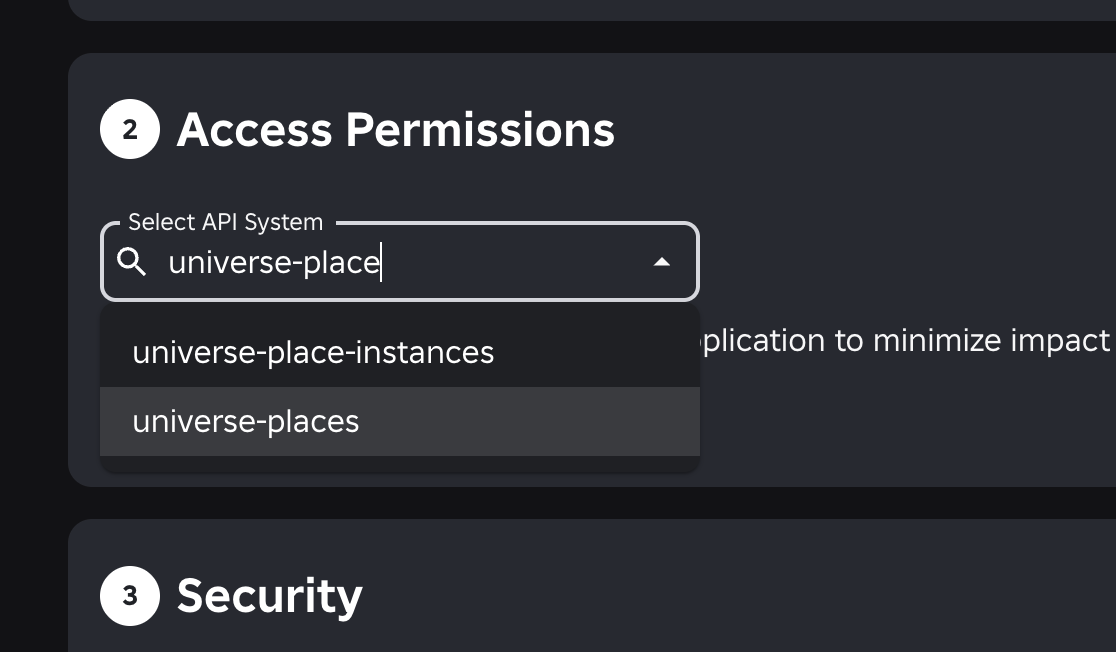
Add write. Open Select Operations to Add and pick
write. Leave Restrict by Experience off. It should now sayuniverse-places:write.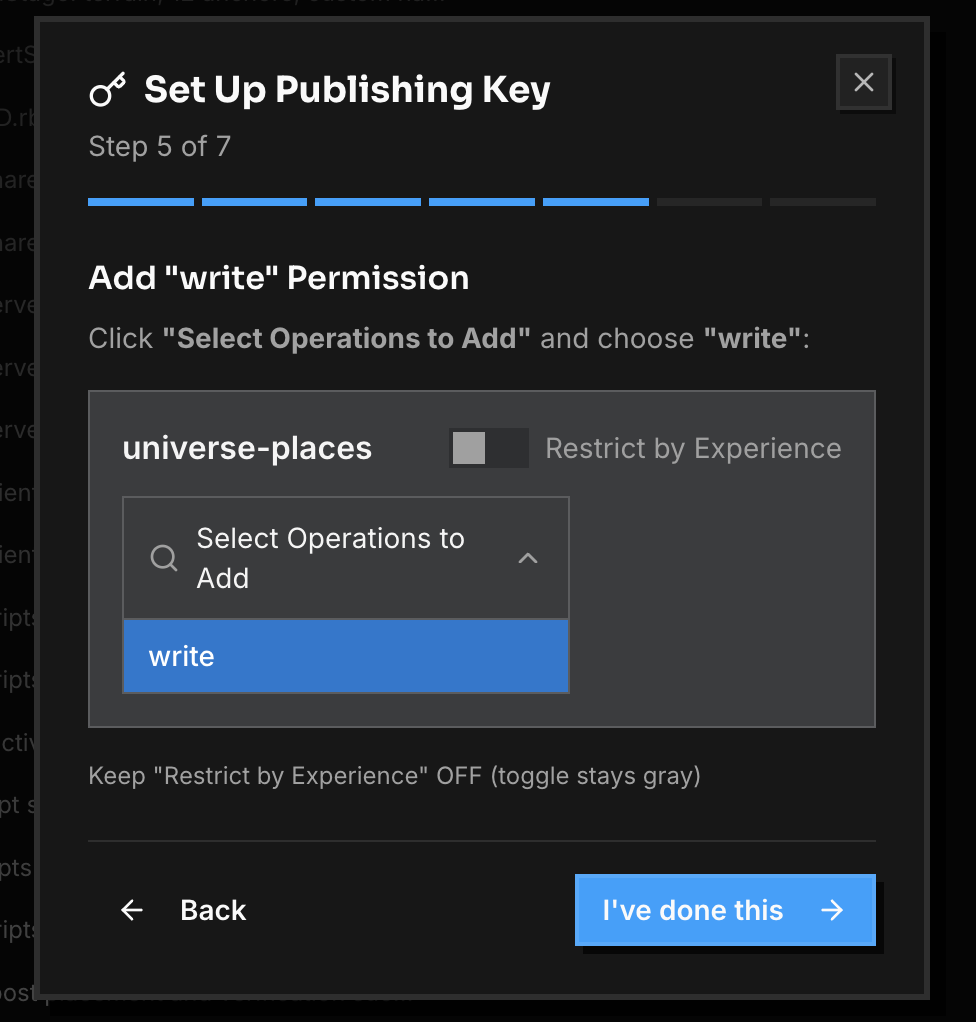
Set No Expiration and generate. Scroll down, set Expiration to
No Expiration, then click Save and Generate Key and confirm. Copy the key now, Roblox shows it only once.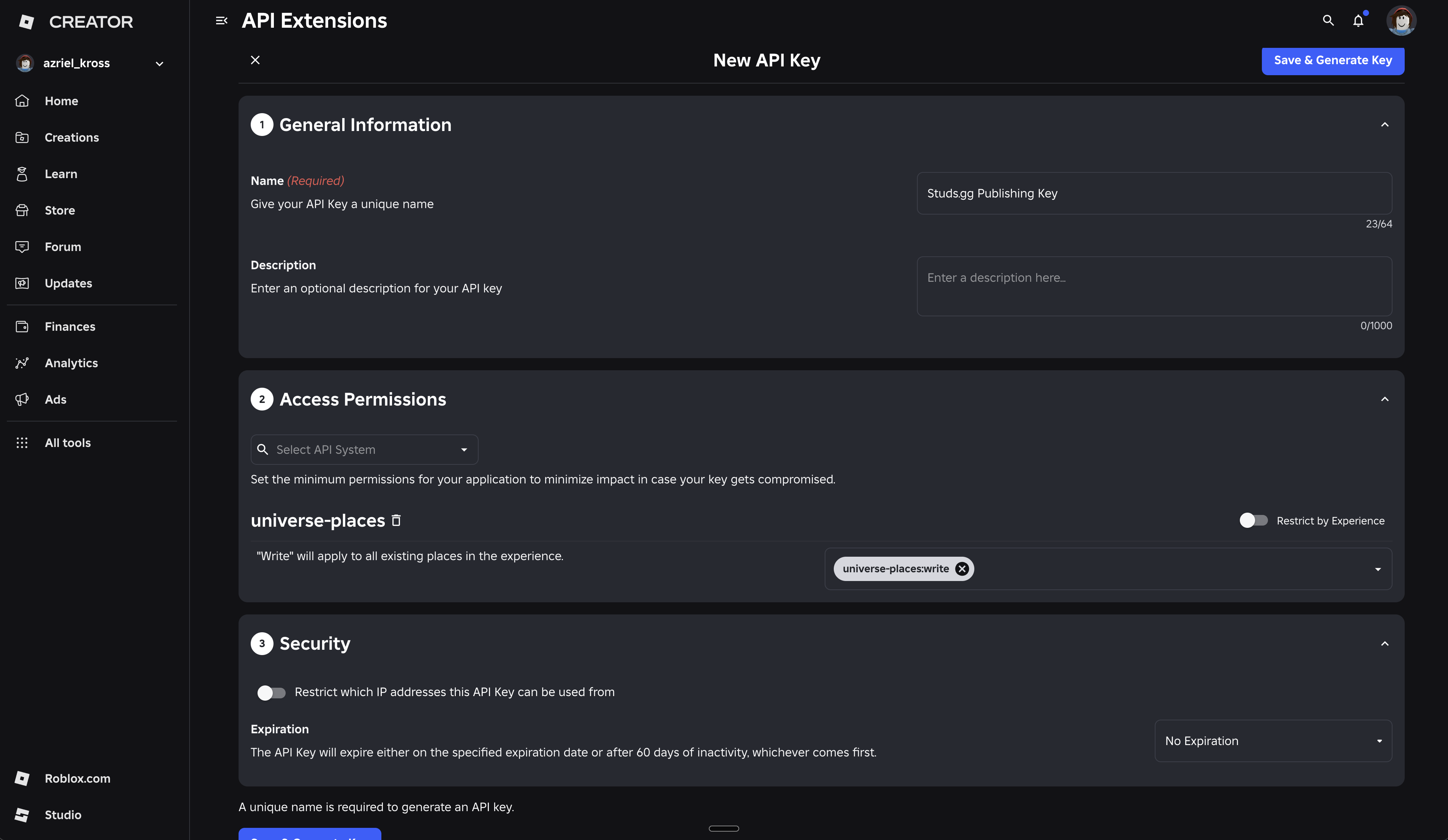
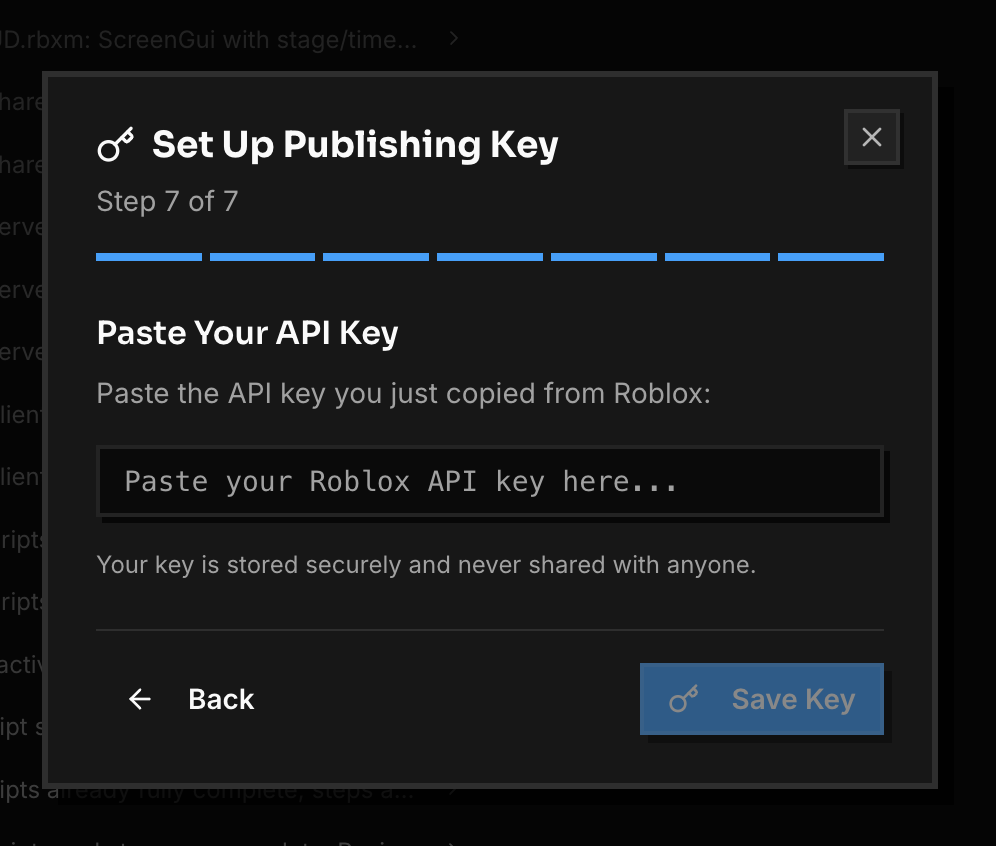
Paste the key into Studs. Back in the wizard, paste your key and click Save Key. Done. Now you can publish anytime with one click.
If it did not work
Key says
invalid or expiredeven when new? Check you pickeduniverse-places(not "universe") and addedwrite. Without that, it fails this way.Permission denied? Your key is likely fine. The problem is on the Roblox side. See the "Publish your game to Roblox" article.Set an expiry by mistake? Make a new key with
No Expirationand paste that.Still stuck? Send us your Run ID (under avatar, Help and Support) and we will help.
Why this happens
Roblox keys only work for the exact system and action you gave them. Publishing needs universe-places with write. Anything less shows up as "invalid," even if the key is real.